
Google Search Console And 404 Errors
We’re often asked about 404 errors, crawl issues, and Google Search Console warnings. The bold truth? 404 errors aren’t always bad!
Written by: Amber, SEO Lead
09/01/2025
3 min read


One of the common questions we get asked at Northern Media is around 404 errors, crawl errors, or Google Search Console errors in general. Quite often, these questions come from worried website owners or marketers who want to know how all this affects their SEO performance.
So, let’s make a bold statement: 404s are not always bad.
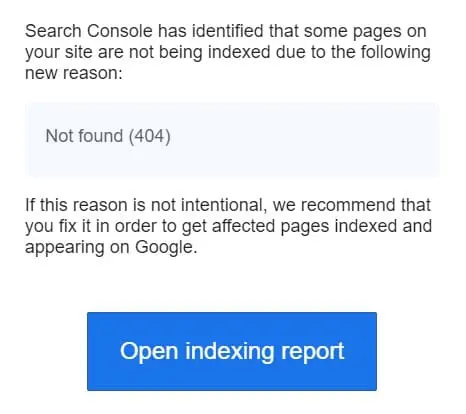
If you’ve had an email like this example from Google or if you’ve been digging into the Page Indexing section on Search Console, some concern is normal. Pages need to be indexed for search engines to display them to users and bring in the traffic that’s going to secure your sales. But the important thing to remember is pages that flag as not indexed are often meant to be there—i.e. not pages you want showing up.
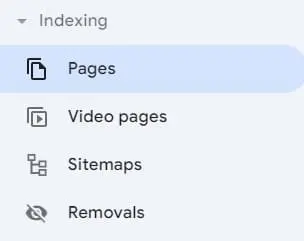
As well as giving lots of useful info on site performance, Search Console also helps you find potential indexing problems on your site. You can access this report by going to the ‘Indexing’ section in the navigation panel and clicking on ‘Pages.’
From there, Search Console shows you various reasons why a page isn’t indexed, including Not Found (404).
Why Do 404s Exist?
There are several common reasons 404 errors appear on your website but it’s normally one or more of these:
- URL was changed or removed without setting up a 301 redirect.
- A site migration went wrong, leaving old URLs no longer valid.
- Internal pages are linking to pages that no longer exist.
- A URL is misspelled in internal or external links.
- Sitemap links point to pages that no longer exist.
- A page was accidentally deleted or moved to drafts.
Do I Need to Fix 404 Errors?
Serving a 404 tells the browser or web crawler that the page no longer exists. In most cases, that is the correct procedure as you need users and search engines to know that the content is gone. If the content has just moved, however, best practice would be to set up a 301 redirect.
404s are a normal part of the internet and not something that always needs to be fixed. Google expects some 404s, particularly on older websites or those undergoing changes, and it will not automatically penalise you for them.
When Do You Need to Use Redirects?
There are specific cases when it’s important to use redirects:
- If the URL structure has changed, which is common in new site builds.
- If you’ve manually changed a URL or ‘slug’.
- If you’ve removed outdated content because a new version exists elsewhere.
- If you’ve merged or consolidated content onto a single URL and removed the others.
When Should You Not Use Redirects?
On the other hand, there are times when you should avoid adding a redirect:
- If the page in question does not have an equivalent URL to redirect to.
- If you’ve removed outdated content that doesn’t have a replacement.
- If the site already has redirect rules in place—creating chains of redirects can hurt user experience and performance. In these cases, speak to a web developer or someone who knows what they’re doing.
- If you’re planning to redirect everything to the same page (e.g. the homepage). This practice can confuse users and harm your site’s SEO.
Search Console 404 Errors: Top Tips
- 404s existing is not always bad, but linking to 404s is bad.
- Don’t add redirects to the homepage or a generic page like the main blog page. If no equivalent page exists, let the page serve a 404.
- Think about the user experience. Users who try to access a removed page should land on a 404, which clearly communicates that the content no longer exists. Being redirected to a different page, especially an irrelevant one like the homepage, can be confusing and frustrating for users.
- Don’t worry about using Search Console’s validation tool for 404s. This tool only clears the error from your dashboard and lets Google know that you’ve addressed the issue—it won’t speed up the crawling or indexing of other pages.
How to Fix Google Search Console Errors
Fixing errors in Google Search Console begins with a good understanding of the type of issue flagged. For 404 errors, consider the following steps:
1. Identify the source of the 404:
• Use the ‘Indexing’ section in Google Search Console to see which pages are returning a 404 status code.
2. Determine the action required:
• Redirect the page (with a 301 redirect) if the content still exists but on a new URL.
• Remove or update links to the 404 page in your internal navigation, sitemaps, or content.
• Let the 404 stand if the page no longer exists and there is no direct replacement.
3. Fix internal links:
• Go through your website and update any internal links that point to the removed or non-existent page.
4. Check external links:
• If possible, reach out to webmasters of external sites that link to your 404 page and ask them to update their links.
5. Validate fixes in Google Search Console:
• Once you’ve made the necessary fixes, you can use the validation tool in Search Console to notify Google that you’ve addressed the issue. But remember, this step is not essential to fixing the issue—it’s more for reporting clarity than for crawling speed.
In conclusion, while Google Search Console alerts you to 404 errors, these errors don’t always require immediate action. Understanding when to fix them—and when they can simply exist with hurting anything—is crucial for maintaining both SEO performance and user experience.
